In-game screenshots
In-game screenshots
Optimium and Range Extenders
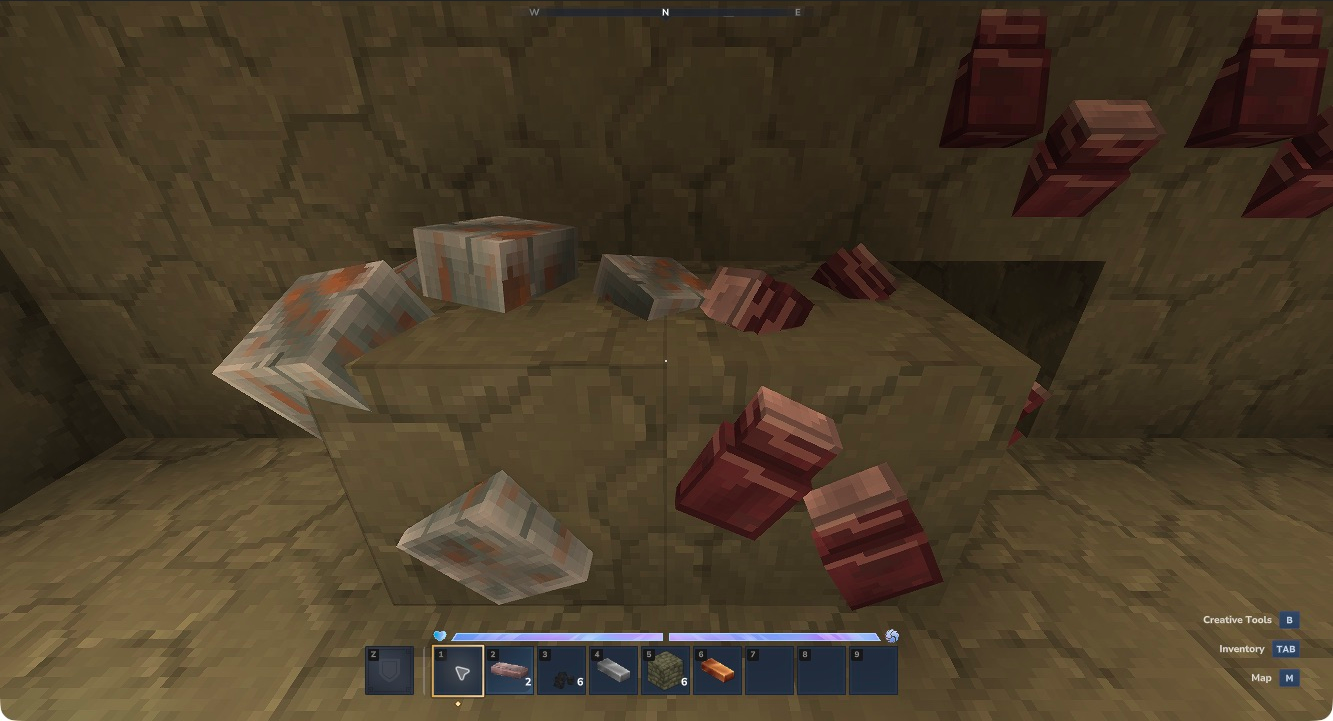
Hytale 0.7.4: Optimium on the right, native iron on the left.
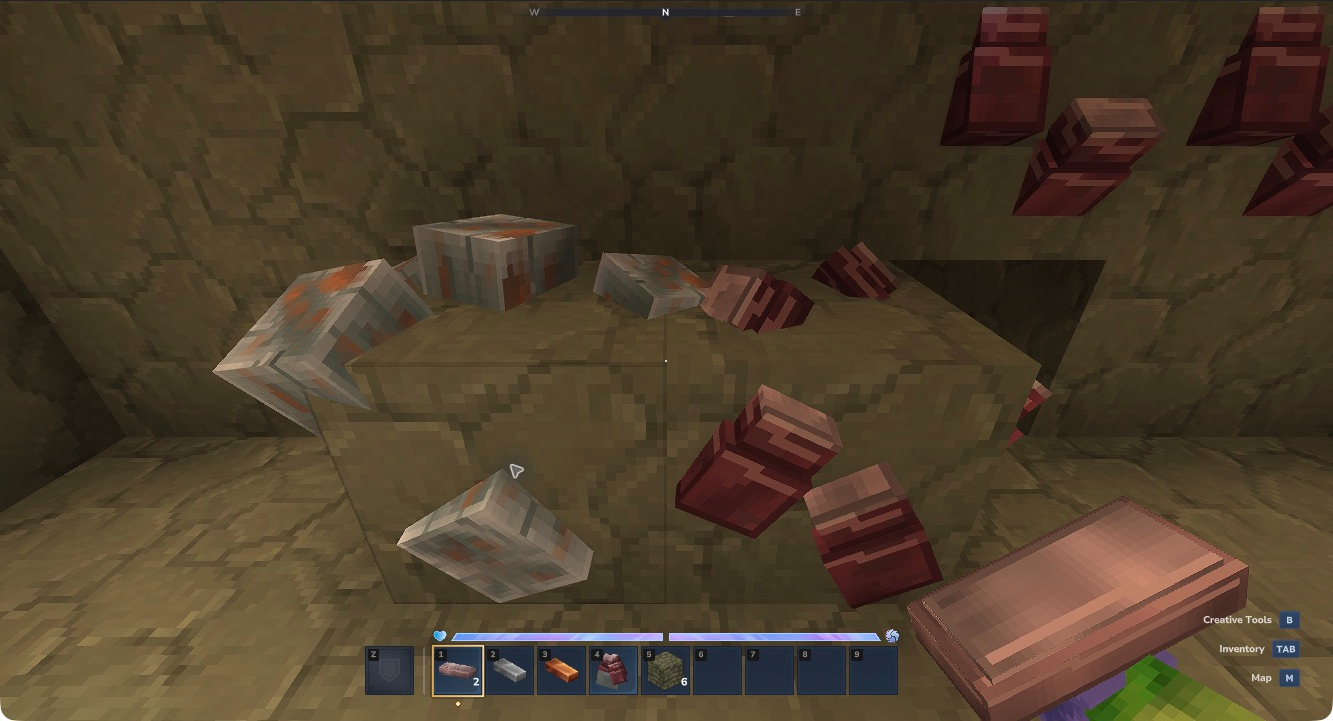
Mine Raw Optimium, then smelt it in a Furnace to make the ingots used by Range Extenders.
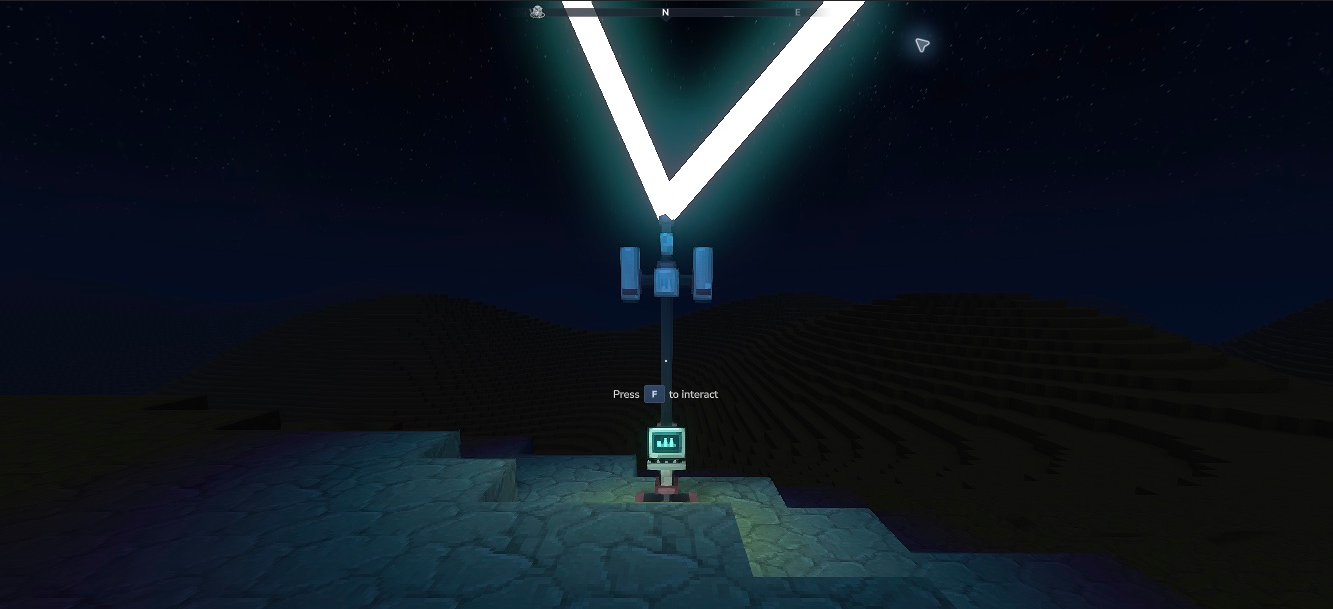
Hytale 0.7.4: the Range Extender provides a physical terminal for pairing your remotes.
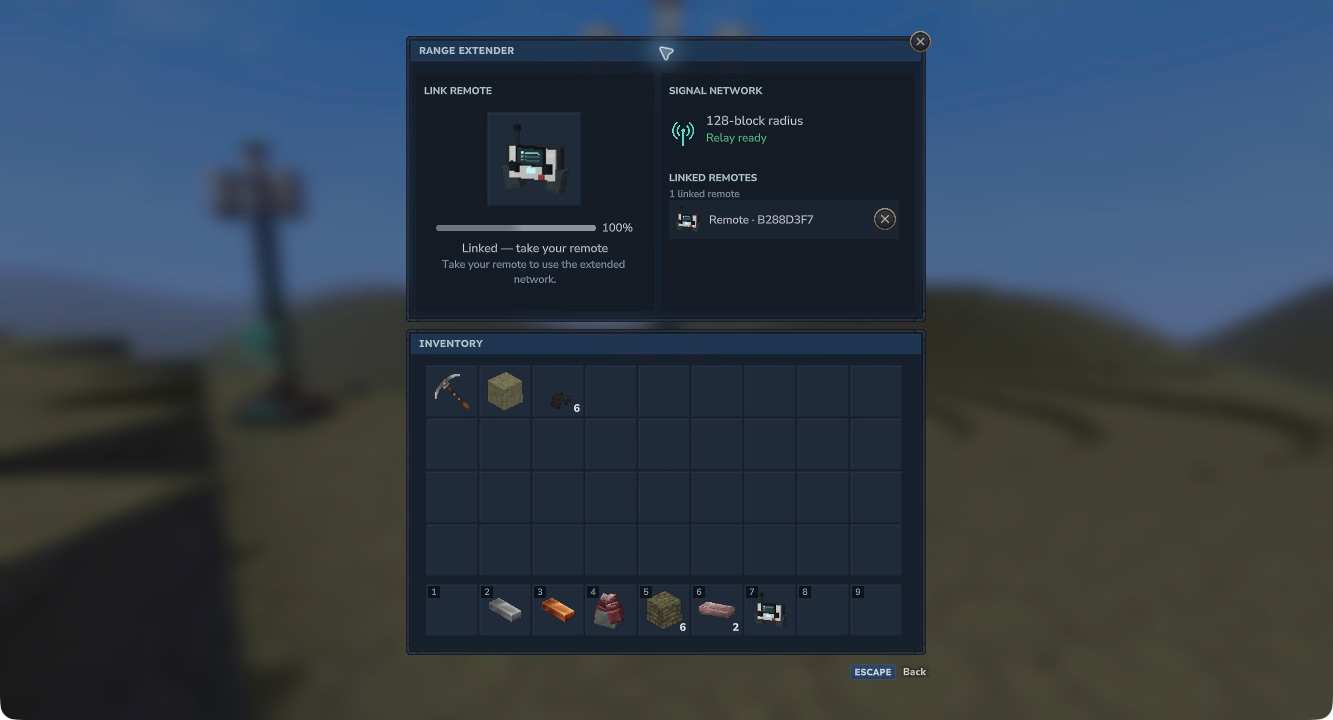
Place a Fleet Remote in the linking slot, wait six seconds and retrieve it.
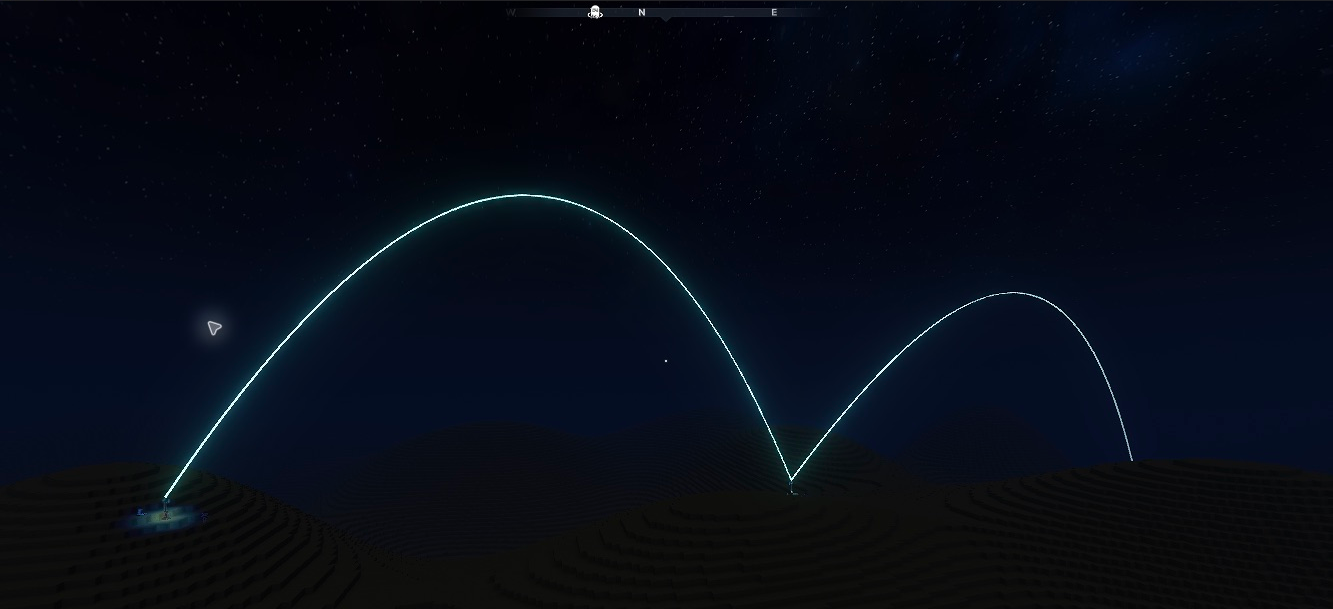
Linked masts relay coverage over 128-block hops. The arcs stay luminous without flashing sky particles.
Fleet Handset
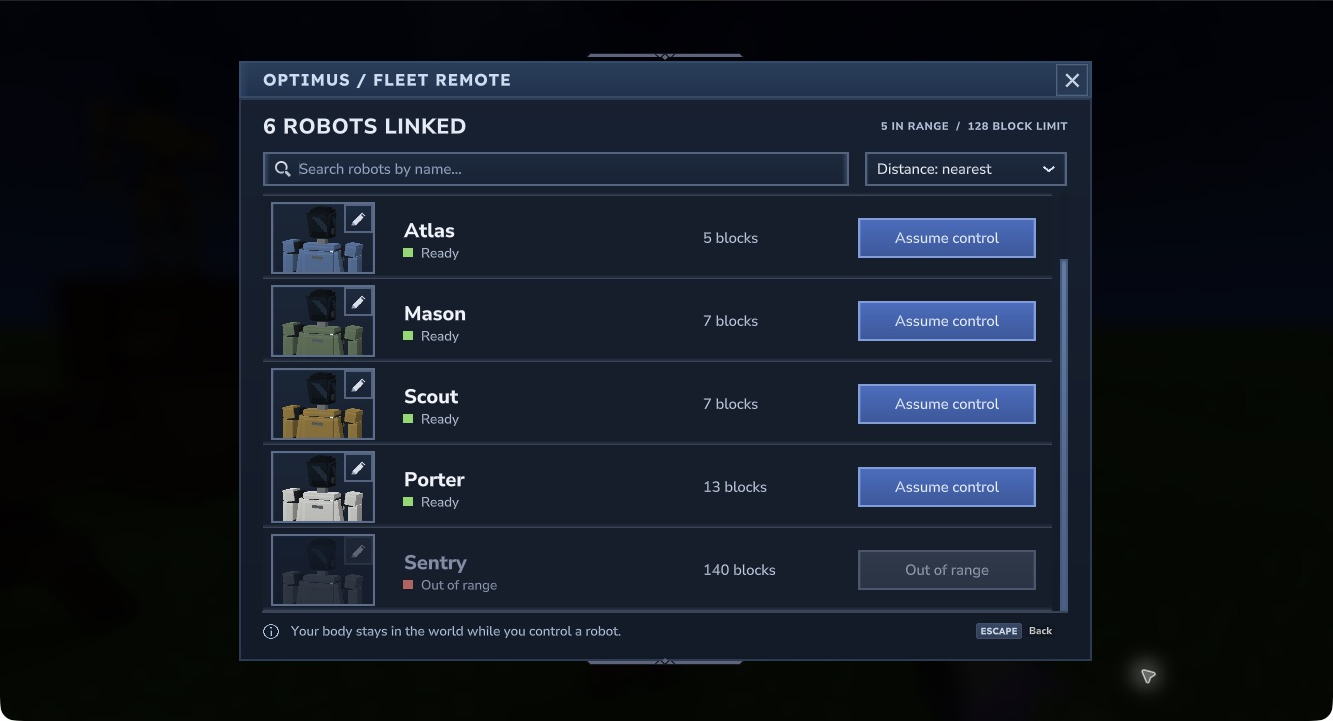
Hytale 0.7.4: search by name, sort the fleet and scroll through linked robots. Distant robots remain visible while editing and control are disabled.
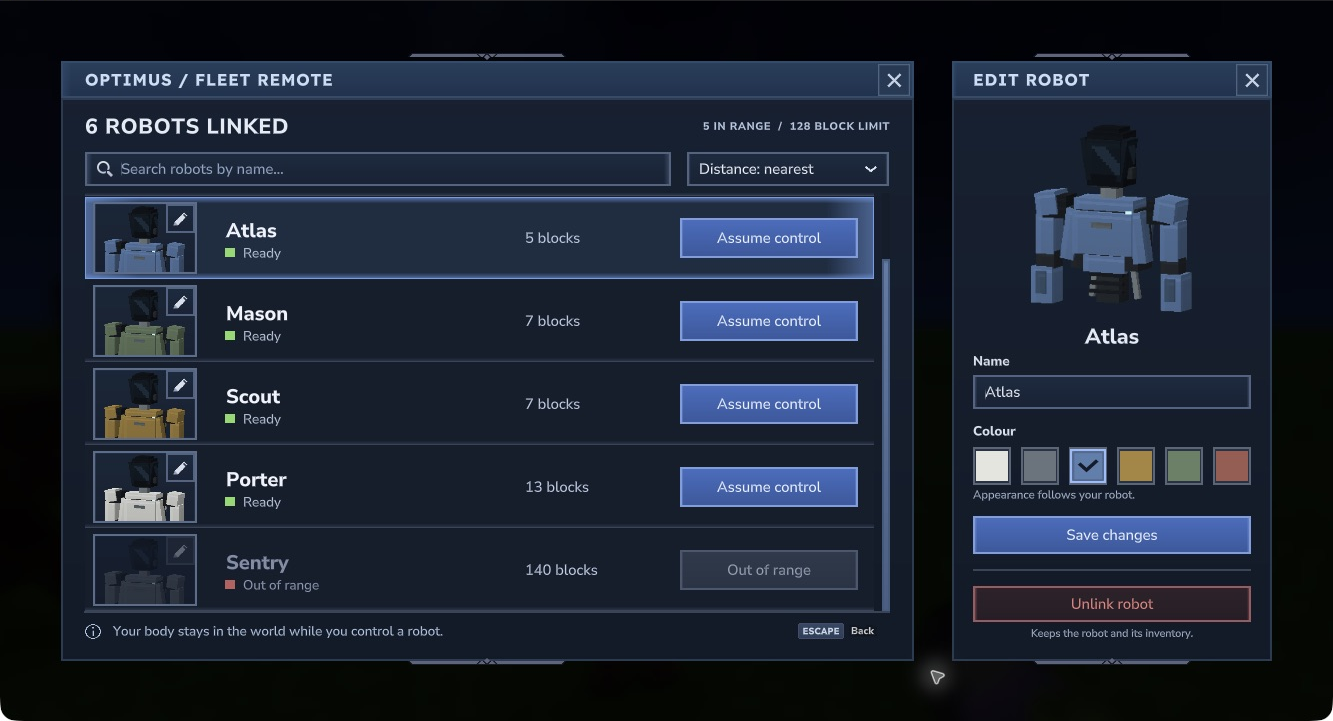
Hytale 0.7.4: use the portrait pencil to preview a name or colour change. Save changes to apply them; the editor X discards the draft. Unlink has a separate confirmation.
The guides also place native screenshots beside the actions they explain:
- First session shows the Workbench, Chest, Assembly Dock and a deployed robot.
- Fleet controls explains the handset, appearance editor and robot controls, with an earlier mining view.
- Inventory and recovery shows the corrected remote icons, held-tool grip and roster after robot destruction.
Captions distinguish current captures from earlier action checks made before slot 1 became Release Control. The homepage banner and navigation logo are original mod artwork.