Fleet and controls
Fleet and controls
A Fleet Remote holds links to several robots. Each robot can link to one remote, and each operator controls one robot at a time.
Link and switch robots
Use the remote’s secondary action while aiming at one of your robots within 5 blocks. The remote binds to its first user and world. Trading it does not transfer ownership or allow another player to control your robots.
Find a robot
The handset shows a scrolling list of linked robots with appearance portraits, names, availability and distance from your body. Type part of a name into Search robots by name to filter the list; search ignores letter case. Clear the field to see the full fleet again.
Use the sort menu to choose Distance: nearest, Distance: farthest or Name: A–Z. Robots outside currently usable range can have no known distance and stay at the end of distance-sorted lists. Search and sorting only change the list; they do not change links or robot ownership.
Choose Assume control beside a ready robot within 128 blocks of your body or reachable through your linked Range Extenders. A faded entry marked Out of range or In use cannot be controlled or edited. Linked Range Extenders activate covered robots while your body can reach their connected network. Release your current robot before selecting another.
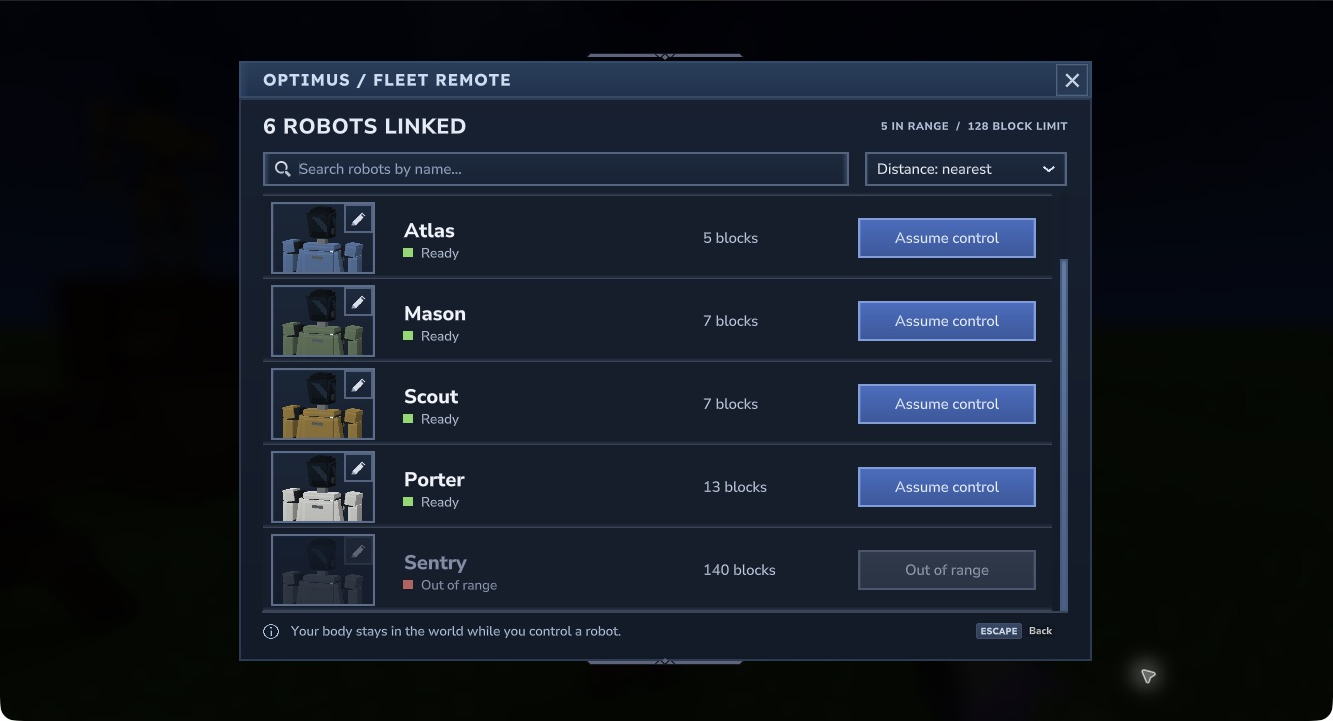
Hytale 0.7.4: five visible rows from a six-robot fleet. Scroll to reach the rest; distances and availability follow the world state.
Edit a robot
Choose the pencil in the top-right corner of a robot’s portrait to open Edit robot. The robot must be loaded, idle, linked to your held remote and reachable directly or through your linked mast network.
- Name: enter up to 24 letters, numbers, spaces, apostrophes, hyphens or underscores. A blank name restores the robot’s default short ID.
- Colour: choose white, graphite, blue, ochre, green or red. The preview shows the selected appearance before saving.
- Save changes: commits the name and colour together. The editor’s X discards unsaved changes.
Saved names and colours stay with the robot after unlinking, relinking and normal save/reload. Existing robots keep their original white appearance until you choose another colour. Appearance changes keep the same robot, equipment and storage.
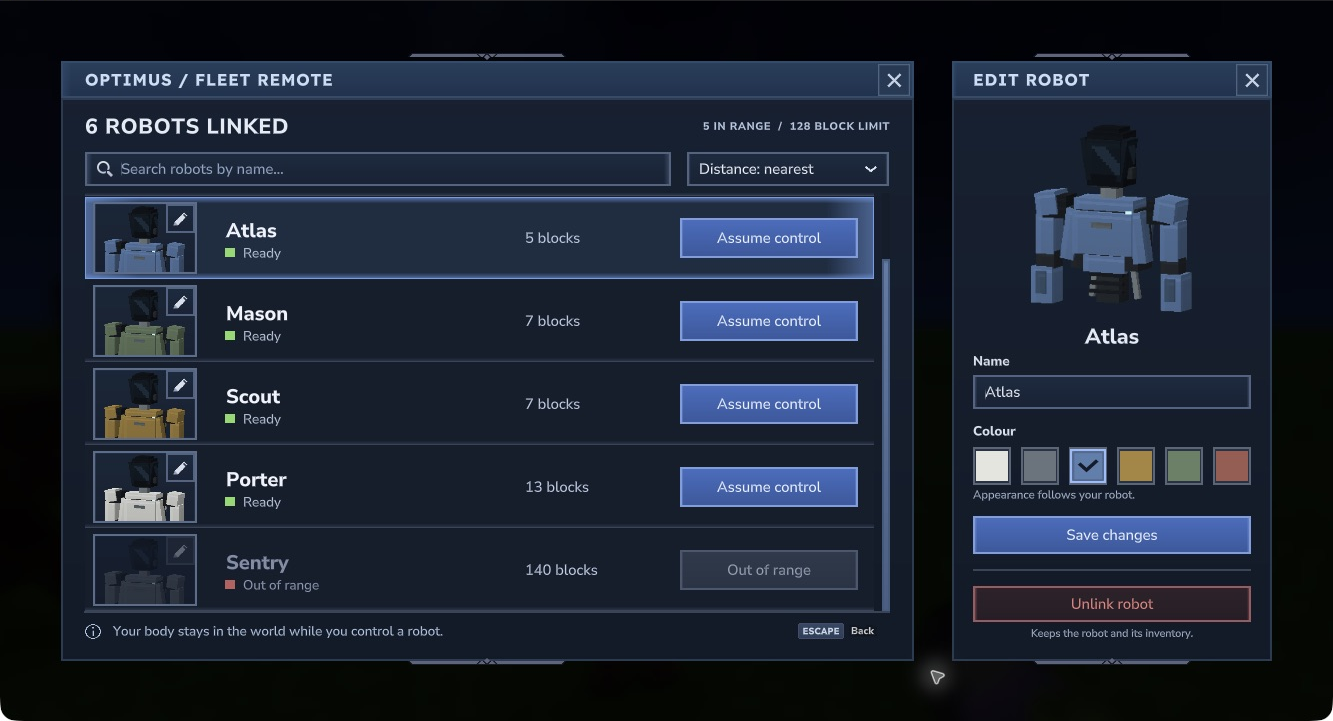
Hytale 0.7.4: the selected row stays highlighted while you preview a name or colour change. Save changes to apply them, or close the editor with its X to discard the preview.
Unlink a robot
Open the portrait editor, choose Unlink robot, then Confirm unlink. Choose Cancel to keep the link. Unlinking frees the robot for another remote and preserves its ownership, colour, equipment and stored items. If the old remote is lost, follow nearby link recovery.
Control a robot
Your body stays in the world under normal damage rules. The robot uses your existing permissions and game mode, with its own inventory and held equipment.
| Action | Control |
|---|---|
| Walk, look and jump | Your normal game bindings |
| Mine, place and use equipment | Your normal item actions with the robot’s held item |
| Equip tools and move items | Your normal inventory binding |
| Return to your body | Select Release Control in slot 1, normally 1, then right-click; or use /optimus-release |
| List your robots in this world | /optimus-list |
| Revoke a lost remote link | /optimus-recover ROBOT_ID beside your parked robot |
Equip tools and blocks in slots 2–9. Open chests and transfer items using the usual inventory controls. Keep within 128 blocks of your body or maintain a connected route through linked masts. A covered robot may show Connecting… while the network loads and validates it; choose Assume control once it is Ready.
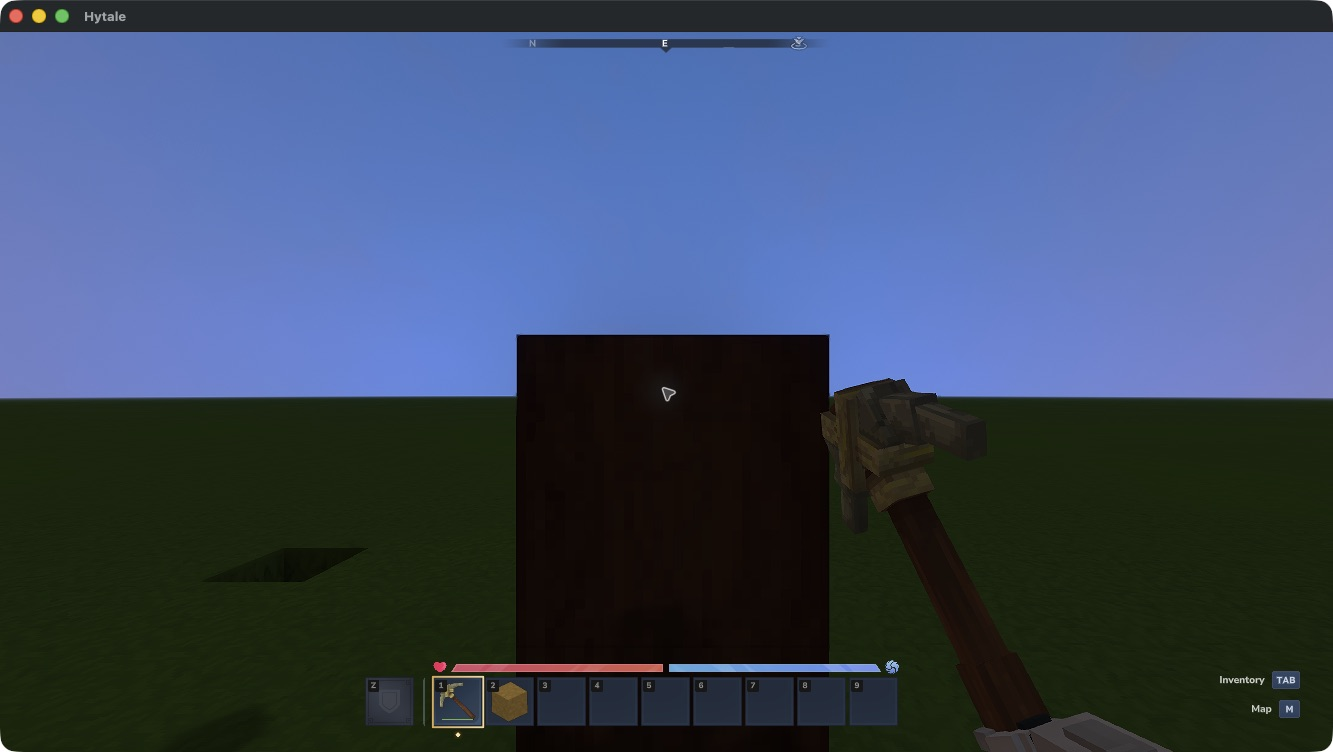
Earlier mining and pickup check, before slot 1 was reserved for Release Control. Current tools and blocks use slots 2–9.
Some animation transitions remain under playtest review. Check current support limits before choosing this build for a session.
End control safely
Select slot 1 and right-click to return before walking away or changing worlds. Scrolling onto slot 1 alone keeps control active. Control also ends if the connection closes, the body or robot dies, the robot unloads, authority becomes invalid, or the robot exceeds control range.
If your body dies, use the normal Respawn screen; your world’s death-loss rules apply. If a robot dies, it leaves the roster and its possessions become world drops. The virtual Release Control button never becomes a drop. Robot destruction does not refund a deployment unit.
Robots and bound remotes belong to their original world. Fleet migration and packing robots into items are unavailable. Control sessions end on restart; open the roster to assume a robot again.